Posts

Showing posts with the label Samsung Galaxy Note 4

How to change an app notifications behaviour in Samsung Galaxy Note 4
Image
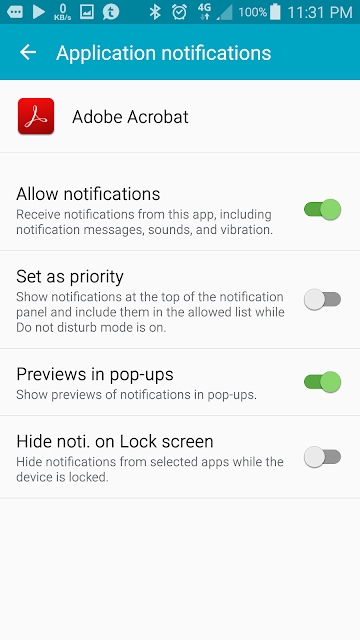
For every app in Samsung Galaxy Note 4, you can change the notifications behaviour to suits your need. For example, you can deny an app to post any notifications if the app is so annoying and there is no way to switch it off within the app settings itself. Or you can hide the notification on lock screen. This is how you can do it. Step 1 : Go to the "App info" screen. Step 2 : Go to "Notifications" and you will be presented with the notification settings screen for your pleasure.
How to find out how much storage space an app is taking up in your Samsung Galaxy Note 4

Image
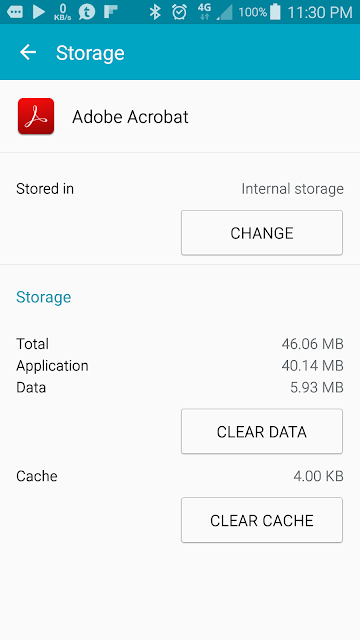
Do you know how to check and find out how much storage space an particular app is taking up from your phone memory? Or do you know that you can move an app install location from phone memory to your SD card memory? By doing that you can reclaim more storage space in your phone memory. You can even delete the app data or clear it's cache data as a means to reset the app if in case the app is not behaving normal. This is how you do it. Step 1 : Go to the "App info" screen. Step 2 : Go to "Storage" and you will be presented with the storage usage screen and you can do what you want with it.

How to change access permissions of an app for Samsung Galaxy Note 4

Image
Do you know that you can deny an app access permission? Permission such as accessing your contacts information and you know that that app has nothing to do with your contacts info. But then it's a useful app and you want to keep it. There are many permissions in the Android system and usually it will ask you if it's ok to have the permissions during installation from Google Play Store. You can change that after installation if you don't like it. Step 1 : Go to the "App info" screen. Step 2 : Go to the "Permissions" screen and you will be presented with the list of permissions that are granted to the app. You can turn off some of the permission to deny it access.

How to block background data of an app for Samsung Galaxy Note 4

Image
This is the easiest way to block or disable background data when using mobile data for any specific app. You can also look at the data usage graph for both mobile and wifi data. I know that I can also get to this screen by going through the Data Usage settings but if the app is consuming little data and if I insist of turning off the background data, then I need to scroll through the long list of apps. Step 1 : Go to the "App info" screen. Step 2 : Go to the "Data usage". You can find the checkbox to enable the block.

Prevent your Samsung Note4 screen from turning off while you are looking at it

Image
There is a cool feature in Samsung Galaxy Note 4 where the Note 4 will not switch off the screen if you are still looking at it. This is particularly useful when you are reading your Kindle or news from your news reader.

How to disable keyboard auto correct for Samsung Galaxy Note 4

Image
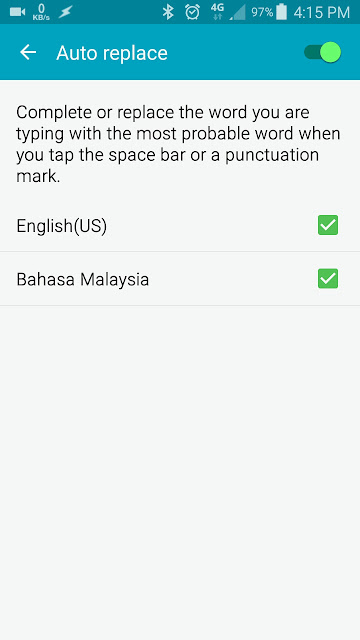
Having fear of those autocorrect horror stories you read in the internet while sending messages to your friends and family? Here's how you can disable the autocorrect function for Samsung Galaxy Note 4. Video Screenshots Step 1 : Pull down the notification panel from the top and tap the settings icon. Step 2 : Go to "Language and Input". Step 3 : Go to "Samsung Keyboard". Step 4 : Go to "Auto replace". Step 5 : Disable the "Auto replace" setting.

How to disable flipboard briefing in Samsung Galaxy Note 4

Image
I find Flipboard Briefing is useful to me but it does consume quite an amount of data volume in the background every month. If you need or want to disable it, here is what you need to do. I have documented the steps in video and screenshots. Video Screenshots Step 1 : Pinch zoom on the home screen. Step 2 : Tap the "Home screen settings". Step 3 : Uncheck the checkbox for Flipboard Briefing.

How to block a number with Samsung Galaxy Note 4

Image
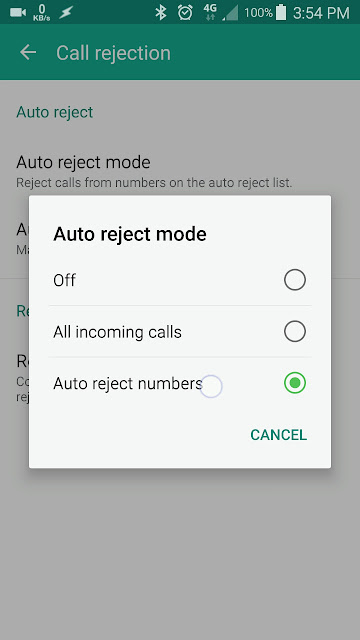
Samsung Galaxy Note 4 comes with a built-in number blocker to block those pesky cold calls from insurance agents, credit cards agents or all kinds of agents that are annoying. You don't have to install an extra app to do that, it's already comes with the phone. Below are the steps on how to get the number blocking setup. You can either watch the video or look at the step by step screenshots. Video Screenshots Step 1 : From the home screen, go to the dialer. Step 2 : Tap the menu icon (3 vertical dots at the upper right screen). Select "Settings". Step 3 : Select "Call". Step 4 : Select "Call rejection". Step 5 : Select "Auto reject mode". Step 6 : Select "Auto reject numbers". Step 7 : Select "Auto reject list". Step 8 : Add a number you want to reject or block.

How to add widgets in Samsung Galaxy Note 4

Image
Somehow I keep forgetting how to add widgets in my Samsung Galaxy Note 4. It's so easy but the function is hidden from plain sight compare to the vanilla Google Android provided in my old Samsung Galaxy Nexus. Maybe I did not fiddle with widgets so much nowadays. I am documenting this to remind myself of how to add app widgets to the home screen for Samsung Galaxy Note 4. Below I have documented the steps in video format and step by step screenshots format. Video Screenshots Step 1 : From the home screen do a pinch zoom and you shall enter the home screen customization mode. Step 2 : Tap the "Widgets" button. Step 3 : Tap and hold the widget that you want to place on the home screen. Step 4 : Immediately your screen will move to the home screen for you to place it wherever you want.

How to access app info in Samsung Galaxy Note 4

Image
The app info screen on the Samsung Galaxy Note 4 is a very useful for accessing individual app specific system settings of storage, data usage, permissions, notifications and etc. By using this screen, you can skip all the long winded steps to get the the specific app from the system settings screen that normally most people will do. Below are the simple steps to show you how to get to the app info screen. Below are the steps I have documented in the form of video and also step by step screenshots. Video Screenshots Step 1: From the home screen, tap the "Apps" button to go into the apps screen. Step 2: Tap and hold one of the app. Step 3: Once you have tap and hold the app, the screen will change to a mode where you can place the shortcut on the home screen. But don't let go just yet. Notice the App Info icon on the top? Move the floating app while you are holding it over the "App Info" icon. Then let go. Step 4: The "App Info" screen will appear and y...

How to recalibrate your Samsung Note 4 battery

Image
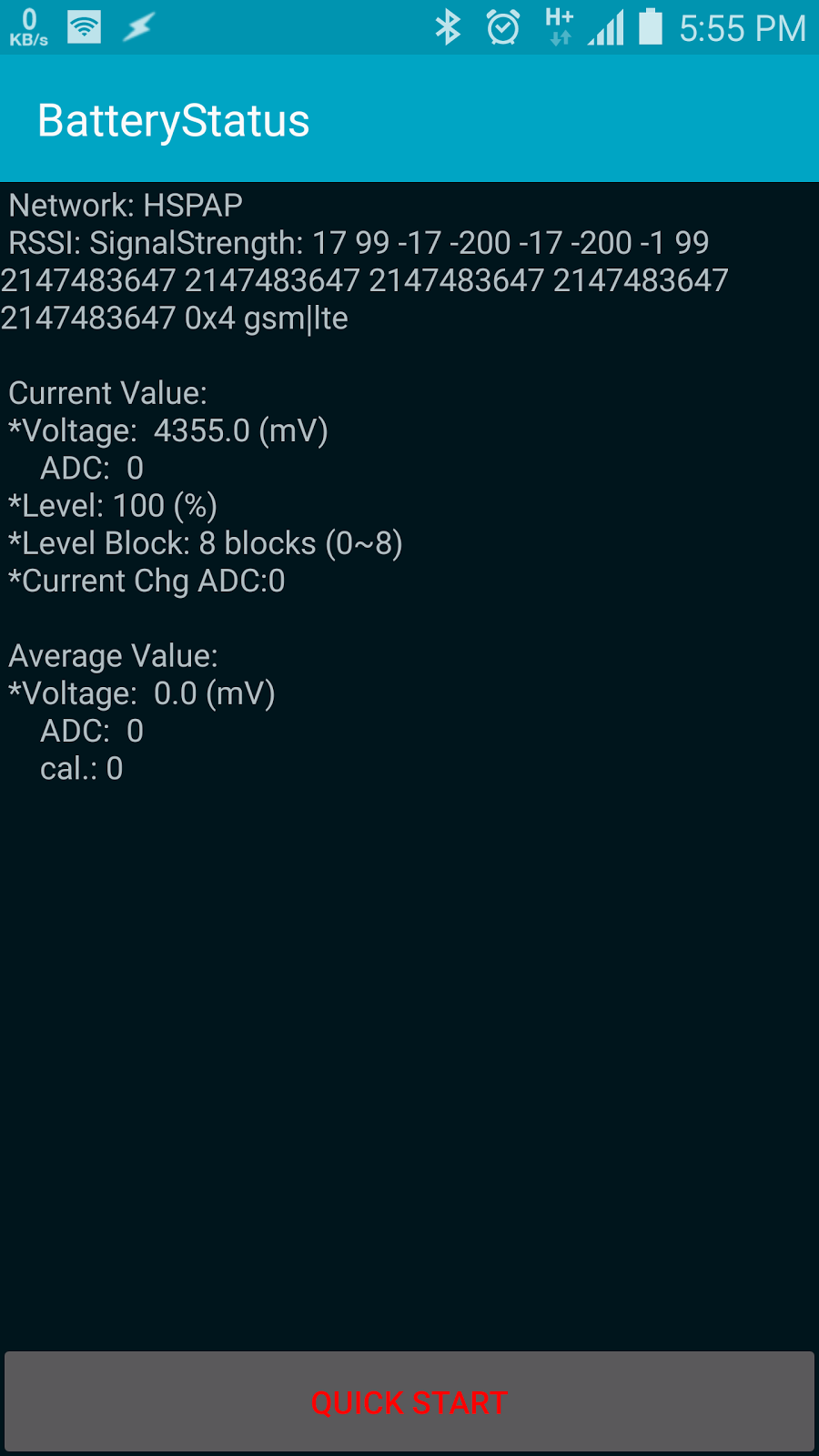
After more than year using the Samsung Galaxy Note 4, I have notice that the battery life seems to be deteriorating. The phone shut down at around 20% of battery level. I was thinking of buying a new battery but I remember I read somewhere on the internet that the battery can be recalibrated to restore the correct reading. That would be the first thing I should do before I decided to get a new battery. From my online research, there seems to be a built-in function in the phone that does the recalibration but there is no official documentation that stated it. I suspect it is possibly built for Samsung production factories to use it whenever they put in a new battery and it is not meant for public usage. After I ran the recalibration, the battery life seems to improve and the readings are more accurate as in there were no sudden drops of battery life level percentage which I experienced many times and cause the phone to shut down immediately at 20% level. Below are the steps on how to st...

How to enable the camera LED flash light as a notification LED light on Samsung Galaxy Note 4

Image
Ever wanted the camera flash LED to be used as a notification light? It would be brighter than the built-in notification LED. The video below will show you how to enable that function or feature in Samsung Galaxy Note 4. Video Screenshots Go to "Settings". Go to "Accessibility". Go to "Hearing". Check the checkbox for "Flash notification". Turn on the "Motions and Gestures" as you will need it for the flash LED to work.

How to enable the home and power buttons to answer and ends calls on Samsung Galaxy Note 4

Image
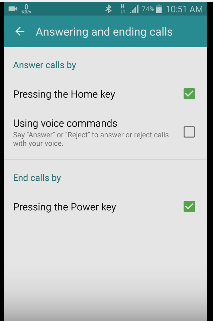
In the Samsung Galaxy Note 4, you can configure the Home button to be used as answering calls button and the power button to be used as ending calls. Below is a video that shows you how you can enable the functions in your Samsung Galaxy Note 4 settings. Video Screenshots Go to "Settings". Go to "Accessibility". Go to "Answering and ending calls". Check the checkboxes for "Pressing the Home Key" and "Pressing the Power Key".