Posts

Showing posts with the label Linux

How to boot Asus EeePC 1005px from USB drive
Image
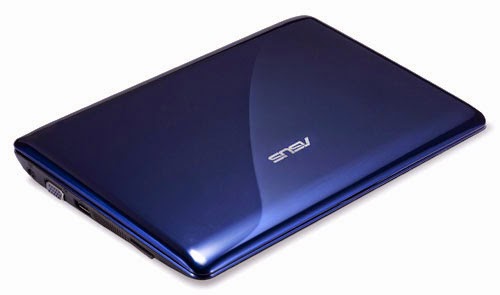
I keep forgetting how to boot my Asus EeePC 1005px from USB drive whenever I need to reinstall my Ubuntu Linux into the netbook. This is how to do it. During the BIOS boot-up screen, press ESC button and you will be presented with a boot device menu. Select the USB drive that you have already plugged in to your netbook and press enter. The boot device you selected is temporary and it's good for the purpose of reinstalling OS into the netbook. You don't have to change the boot order from the BIOS setup as the change is going to be permanent. By using the boot device selection menu, you can temporary set the boot device for that boot up only.

How to securely erase or wipe disk drives using bootable Ubuntu Live USB thumb drive

Image
If you are planning of selling off your old hard disk drive (HDD) or even USB drive, you might need to do a secure delete of the contents of your old HDD. This will ensure all your personal data in your HDD is unrecoverable using data recovery software. The idea behind this secure deletion or erasure of your HDD content is basically overwriting every bytes of your disk drive with either zeros or random data. This way, whoever that tries to recover the data, they will only see zeros or gibberish data (random data). I like to have a thumb drive preloaded with bootable Live Ubuntu USB thumb drive ready to perform tasks like this. For this post, I am not going to cover the topic of how to setup your USB thumb drive with Ubuntu Live OS. The tutorial is ready available at official Ubuntu website . Once the Ubuntu Live OS is booted up on your PC, there are already built-in commands you can use to perform such secure deletion or erase of your HDD content. There 2 commands that you can use from...

How to run a command with a different CPU priority in Linux

Use nice to start a command with a different CPU priority in Linux. nice -n [num] [command with arguments] The nice number range from 19 to -20. 0 is the normal priority, 19 is the lowest priority and -20 is the highest priority. However, you will need admin rights to use -20. Eaxmples Run a command with the lowest priority. nice -n 19 [command with arguments]

How to find and delete files using command in Linux

How to use the command line in Linux to perform find/search and delete files. Find files with a search term (wildcard is *) and remove them. find . -name "search term" -exec rm -f {} \; Before running the command verify the results of the find command by running just find . -name "search term" Examples: Find all files having .txt (*.txt) extension in the current directory and remove them: find . -type f -name "*.txt" -exec rm -f {} \; Find all files having .txt (*.txt) extension in the current directory and remove them with confirmation: find . -type f -name "*.txt" -exec rm -i {} \; References, Sources and Credits: http://www.cyberciti.biz/faq/linux-unix-how-to-find-and-remove-files/

Create individual tar.gz archive for every directory found in current location

This is how to automatically create individual tar.gz archive for every directory found in current location. Sometimes the whole directory might be too big to archive so I need to go one more level under and create a separate archives for each directory found. Method 1: find * -maxdepth 0 -type d -exec tar zcvf {}.tar.gz {} \; Method 2: for i in `ls ./`; do tar czvf "$i".tar.gz "$i" ; done References, Sources and Credits: http://www.commandlinefu.com/commands/view/2404/tar-per-directory

Mounting NFS share directory from D-link DNS 320L on Ubuntu 12.04 LTS

Image
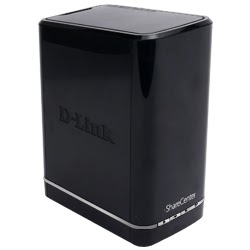
Seems like the steps on how to get the NFS mount point from the D-Link DNS 320L NAS server were not properly documented in their user manual. After setting up and enabled the NFS service on the D-Link DNS 320L NAS server, I went ahead to setup and mount the share directory/folder in Ubuntu 12.04 LTS assuming the mount point in NAS was /Volume_1/... but that is not the correct mount point to start with! Found this answer from D-Link forum post from a member (ba43123) that helped me to correctly mount the NFS share directory/folder on Ubuntu 12.04 LTS: After spending most of the last hour on the phone with D-Link Technical Support, I came away with the recommendation to take my Mac (which has successfully connected to a number of NFS shares in the past) to Apple to determine if the network settings for NFS are correct.  This is mostly due to the fact that the people who are taking the calls have no information about NFS in their scripts and Knowledge Base so they are at a total loss...

How to setup Tonido Desktop on Ubuntu 12.04LTS

Image
This post is about setting Tonido on Ubuntu 12.04 LTS with service to automatically starts Tonido every time the computer system starts. Recently I was looking for a software solution to turn my old Asus EeePC netbook into a personal home storage server. I found a few good solutions from my research and for my personal use case, Tonido Desktop seems to be a good fit. Tonido Desktop has few advantages over other solutions that I felt it qualifies for my use: It’s the easiest to setup compare to FreeNAS or ownCloud. Free Android app to access my files using my Android smartphone and tablet.  Free sub domain (https://<username>.tonidoid.com) for easy access to my personal home storage  server from anywhere in the world. This eliminates the effort of setting up your own domain name and port forwarding on my router for file access from the Internet. File sync capability (limited to 2GB files for the free Tonido Desktop software). Runs on Ubuntu 12.04 LTS. Tonido provides deb...

How to install Google Earth on Ubuntu 12.04 LTS

This is how to install Google Earth software on Ubuntu Linux using deb package provided by Google. To install Google Earth on Ubuntu, run these commands: Download the respective deb packages according to the type of Ubuntu OS 32 bit wget http://dl.google.com/dl/earth/client/current/google-earth-stable_current_i386.deb 64 bit wget http://dl.google.com/dl/earth/client/current/google-earth-stable_current_amd64.deb Setup Google Earth sudo dpkg -i google-earth-stable*.deb sudo apt-get -f install References, Sources and Credits: http://www.google.com/linuxrepositories/ http://askubuntu.com/questions/302135/google-earth-on-13-04-ubuntu

How to search and replace text strings in multiple text files using sed

This is how you can automatically search and replace text strings in multiple text files in a single command using sed. sed -i "s/ searched-text / replacement-text /g" text-filename.txt References, Sources and Credits: http://www.cyberciti.biz/faq/unix-linux-replace-string-words-in-many-files/

Picasa for Linux

Image
Google decided to stop supporting Picasa running on Linux. They have taken down the download link for the deb install package for Ubuntu Linux OS. I need the deb install package as a pre-requisite to install any latest version of Picasa (Windows installation file) on my Ubuntu Linux OS. If you are not sure what I meant by installing the latest version of Picasa on Ubuntu Linux, please refer to this post for the steps . Luckily I was able to find the deb install package file in the internet and save it for my future re-installation of Picasa on my Ubuntu Linux OS. Here is the download link: picasa_3.0-current_i386.deb

How to connect Samsung Galaxy Nexus to Ubuntu 12.04 LTS using MTP

Image
Samsung Galaxy Nexus USB computer connection settings Trying to connect and  transfer files between my Ubuntu desktop and my Samsung Galaxy Nexus was a pain in the ass. It seems that my Samsung Galaxy Nexus is unable to mount to my Ubuntu desktop at all. After a long search in the internet, i found a customized solution to this problem. When an Android is connected to Ubuntu Linux through Media Transfer Protocol (MTP), Ubuntu will try to mount the Android using gvfs through gphoto2 but because gvfs does not have native support for MTP yet, it doesn't always work properly. You will probably see this error whenever you try to browse the Android device (that seems like it mounted) from Nautilus: "Sorry, could not display all the contents of "Android": Timeout was reached" When it did work, it work very sluggishly and unreliably. An alternative is to use mtpfs but that too has been reported unstable lately. Because of this, a Google employee created his own mtpfs ca...

How to get Harddisk UUID in Ubuntu 12.04 LTS

Using UUID is a better way for a Linux system to identify a harddisk partition for mounting compare to using block names (/dev/hda1 or /dev/sda1). This is because UUID is a unique identification of each partition of the harddisk. UUID will guarantee the partition to mount to it's designated mount point even if the harddisk had been connected at different SATA connectors in your PC system. Here is how you can find out your UUID of your harddisk partition: Run this command without sudo: blkid Or you can run this "ls" command to get the UUID: ls -l /dev/disk/by-uuid

How to enable copy and paste between Windows machine and vncviewer viewing a Linux vnc session

Image
Ever wonder why you can't copy and paste from and to vncviewer that is viewing a vnc session from a Linux machine? It's likely that the vncconfig program is not running to handle your clipboard transfer. If you are seeing that you are unable to copy and paste from your vncviewer, run this command at the Linux machine command line window through your vncviewer that is viewing your Linux vnc session: vncconfig & If you want to run this command in the background without the little window with the settings appearing, use this command instead: vncconfig -nowin & Once vncconfig is running, close your vncviewer and reconnect it again. References or Credits: http://rreddy.blogspot.com/2009/07/vncviewer-clipboard-operations-like.html http://spuntamkar.blogspot.com/2007/01/copy-paste-between-linux-and-windows.html

How Linux is Built

Image
This 3 minutes video of how Linux is built shows us how Linux OS had affected our daily lives and technology around us. From a different perspective, will the next major computer virus outbreak be hitting Linux OS? References or Credits: How Linux is Built OMG Ubuntu! INDEX PAGE

Schedule or time your Shutdown in Ubuntu Linux

This is how you can schedule your Ubuntu PC shutdown using the "shutdown" command. Very handy if you need to leave your PC alone and shutdown at a specified time. Shutdown immediately sudo shutdown -P now Shutdown after a delay in minutes sudo shutdown -P +minutes Shutdown at a specified time sudo shutdown -P hh:mm

Turn or switch off your monitor display using command line in Ubuntu Linux

This is how you can manually turn or switch off your display or monitor using command line in Ubuntu. You can set a keyboard shortcut to run this so that you can manually turn off your display. To switch off the display: xset dpms force off To switch on back the display (in case you are doing this from remote login): xset dpms force on To check the status of the display (also in case you are doing this from remote login): xset -q Note: Once the display is switched off, any keypress or mouse movement will switch on the display. In case you are going to assign the switching off display command to a keyboard shortcut, please use this command instead: gnome-screensaver-command -a && xset dpms force off This is because there seems to be an issue to run the xset command from the shortcut. The monitor switched off for momentarily and then it switches on back.

How to hide any files in an image file

This is a simple method to hide any kinds of files in an image file. This method can be apply to any kinds of image format. Ex. JPEG, GIF, BMP, PNG, etc. This method works in Windows or Linux operating systems (O.S.) platforms. This post will show you how to do this on both Windows and Linux O.S. platforms. Windows To hide: Compress files to any compressed archive. (zip, rar, tar, 7z, etc...). Copy the compressed file/files and the image file into a folder. Run a Windows command prompt. CD to the folder. Execute this command to hide the files into an image file. copy /b initial_img_file+archive_file new_img_file initial_img_file = this is the initial image file that does not have any archive hidden inside. archive_file =  a compressed archive that stores your files that you want to hide. new_img_file = this is a new image file that will have the archive hidden inside. Example: copy /b abc.jpg+archive.zip xyz.jpg To extract hidden files: Use any file compression software (WinZip, Wi...

Common Unix/Linux Commands List

Image
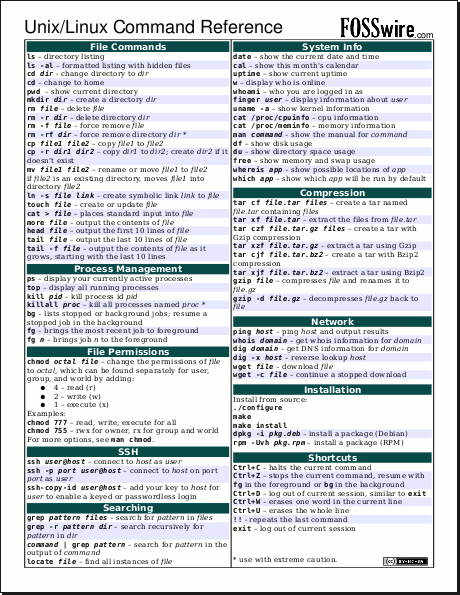
This is an excellent piece of Unix or Linux command reference or cheat sheet for those who are new to Unix or Linux OS. Occasional Unix or Linux command line users apply too. Click the image to download the PDF You can find this cheat sheet in other languages from the originator webpage of this document. FOSSWire: Unix/Linux Command Cheat Sheet

Flash Video No Longer Saved in tmp Directory

The recent update to the flashplugin-installer  package in Ubuntu (10.04) Lucid Lynx has change how Adobe caches temporary downloaded flash video (flv) for playback in browsers. Although there are many software available to download the flash video but copying from /tmp directory is the most easiest and convenient for me. The solution for me is to downgrade the flashplugin-installer  in my Ubuntu machine so i can use back the feature. Run Synaptic Package Manager . Search for flashplugin-installer . Select the flashplugin-installer package. Goto Package > Force Version . Select 10.0.45.2ubuntu1 version. Hit Apply to downgrade the package version. After the downgrade, goto Package > Lock Version . Note: I have saved the deb file just in case. [ DOWNLOAD ]

Download A Web Site With wget

This is a reference on how to download an entire web site using wget program. This works for both Windows and Linux variant of the program. There are 2 ways to use wget to download a web site. Below are my recommendation of the usage of the wget command. Simple & Easy wget -m [url] Longer & More Control wget \  --recursive \  --no-clobber \  --page-requisites \  --html-extension \  --convert-links \  --domain [url] \  --no-parent Extra Tweak to Avoid Getting Ban By Server Admin Some server admins might ban the download if there are no delay in between downloads and in high speed. The extra option below will probably avoid getting ban from the server admins. --wait= [seconds] --limit-rate= [download speed in 'k']