Posts

Showing posts with the label Amazon Kindle

Amazon Kindle Keyboard built-in calculator cheat sheet

Image
The search box in your Kindle Keyboard can be used as a calculator. It can be very handy when you just need to do a simple calculation. I have created a single paged pdf cheat sheet that lists out the mathematical functions that are available. You can load the cheat sheet into your Kindle and every time you want to refer to the available functions for the built-in calculator, just open it.  Click the image below to download the cheat sheet. Feel free to share the cheat sheet to your fellow Kindle friends. Let me know if you found other functions that are not listed here. Click the image to download the pdf file References or Credits: http://blog.diannegorman.net/2010/09/kindle-3-keyboard-shortcuts-et-al/
Amazon Kindle Keyboard Shortcuts Cheat Sheet

Image
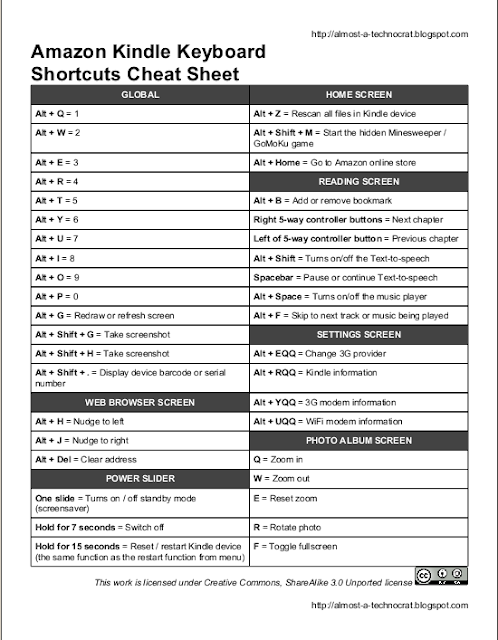
This is a cheat sheet that I have created so i can print it out and stick it on my wall in case forgotten the shortcuts. You can even load it in to your Kindle device and refer to it. Feel free to download and distribute it. A screenshot of the cheat sheet. Click the image to download the PDF file. Kindle Keyboard Shortcuts Cheat Sheet  by  Almost a Technocrat  is licensed under a  Creative Commons Attribution-ShareAlike 3.0 Unported License . Based on a work at  almost-a-technocrat.blogspot.com .

Customizing Amazon Kindle Keyboard

The Amazon Kindle Keyboard is a great eReader device. The device is basically an ARM based platform loaded with Linux OS. Thus it implies that it is highly customize-able. This post will guide you on what you can customize on your Kindle Keyboard. Customize your Kindle Keyboard without jail breaking it Customize Amazon Kindle Keyboard horizontal text margin In your Amazon Kindle Keyboard, to adjust the left and right margins of your text, you can use the "Words per line" option from the font sizes menu (press AA key to the right of the spacebar on the keyboard). The option provides you with three types of margin sizes with friendly names. They are default, fewer and fewest. You might feel that at the smallest margin setting (default), there is still a lot of space left from the text to the side bezel. You can customize the margins even smaller till the text close to the side bezel. Enable the text Justification hidden menu in Amazon Kindle Keyboard There is a hidden menu entr...

Amazon Kindle Keyboard Hidden Features

The Amazon Kindle Keyboard device is full of hidden features. This post will list out the hidden features that you can find in your Kindle Keyboard without jailbreaking it. Create a photo album in your Kindle Keyboard It was not publicized at all by Amazon but never the less it's kind of cool to see eReading device can other than reading texts. Take a screenshot of your Kindle Keyboard A useful feature to capture your Kindle Keyboard screen. Play Minesweeper and GoMoKu in Amazon Kindle Keyboard Other than reading eBooks, you can play some game to kill your time.  Keyboard shortcuts This is a Kindle Keyboard. It has shortcuts! Keyboard shortcuts cheat sheet A single page printable friendly shortcut cheat sheet ready for download. Built-in Calculator The search box in your Kindle Keyboard can be used as a calculator. It can be very handy when you just need to do a simple calculation. I have created a single paged pdf cheat sheet that lists out the mathematical functions that are avai...

How to disable Amazon Kindle Keyboard screensaver

By default if you leave your Kindle Keyboard idle for 10 minutes without turning a page, it will enter screensaver mode (sleep mode). There are times you just need it to stay on a page without going in to screensaver mode. This post will show you how you can disable the screensaver mode. Disable screensaver mode Press Home button. Press Del button. This will bring up the search box. Type ;debugOn and press Enter. Type ~disableScreensaver and press Enter. Type ;debugOff and press Enter. Once you have disabled the screensaver mode, you can manually switch to screensaver mode by using the power slider. Re-enable screensaver mode Press  Home  button. Press  Del  button. This will bring up the search box. Type  ;debugOn  and press Enter. Type  ~resumeScreensaver  and press Enter. Type  ;debugOff  and press Enter. References or Credits: How to disable Kindle's auto-sleep function?

Customize Amazon Kindle Keyboard fonts without jailbreak

Image
This is a font customization that you can do to your Kindle device without the Jailbreak . It's not as powerful as the font hack . You can only able to change the reader font. On your Amazon Kindle, press Home button to go to your home page. This step is important to make sure the change you are going to do will take effect. If you are doing this while an eBook is open, the change will not take effect. Connect your Amazon Kindle to your computer with a USB cable. Open the folder in sequence :  system > com.amazon.ebook.booklet.reader In the " com.amazon.ebook.booklet.reader " folder, open  reader.pref  file with a text editor. Add a new line to the file just before "FONT_FAMILY=" line: ALLOW_USER_FONT=true Replace FONT_FAMILY= with FONT_FAMILY=alt . Save and close the  reader.pref  file. At the root of your Kindle device, create a folder named fonts . In this folder, you will need to rename your custom fonts with specific names according to their styles. Re...

Customize Amazon Kindle Keyboard fonts with jailbreak

Image
With the Jailbreak, you can also customize the fonts in your Kindle device. This post will walk you through the steps on how to customize your Kindle device fonts. Install custom fonts hack Jail break your Kindle device . Download  kindle-fonts-4.9.N-k2.zip  (for Kindle 2, DX) or  kindle-fonts-4.9.N-k3.zip  (for Kindle 3/ Keyboard) file depends on the Kindle device you have. Un-zip the file. Connect your Amazon Kindle device to your PC using USB cable. According to your Kindle device version, copy the appropriate update_fonts_4.9.N_[kindle version]_install.bin file to the root of your connect Kindle. For more information of the definition of the bin files, refer to the Definition of fonts hack files section. Copy the linkfonts folder under the src folder to root of your connected Kindle. Disconnect your Kindle device from your PC. Go to Home > Menu > Settings > Menu > Update Your Kindle . To customize fonts Refer to Fonts files naming scheme section....

Customize Amazon Kindle Keyboard Screensaver with jailbreak

Image
Getting bored looking at the factory shipped Kindle screensaver whenever you put it on standby? Or you might want to customize the screensaver with personal message and give the Kindle to someone as a gift with a personal touch. Install Screensaver Hack Jail break your Kindle device . Download  kindle-ss-0.25.N.zip  file. Un-zip the file. Connect your Amazon Kindle device to your PC using USB cable. According to your Kindle device version, copy the appropriate update_ss_0.25.N_[kindle version]_install.bin  file to the root of your connect Kindle. For more information of the definition of the bin files, refer to the Definition of screensaver hack files section. Copy the " linkss " folder under the " src " folder to the root of your connect Kindle. Copy your custom 600x800 (824x1200 if you have a DX) image files (png or jpeg) into the  screensavers  folder under the  linkss  folder. Disconnect your Amazon Kindle device from your PC. Go to  Home...

Jailbreak your Amazon Kindle Keyboard

Image
Jail breaking your Amazon Kindle device will enable you to customize fonts and your screensaver. Additional to fonts and screensaver customization, you can also try out some of the hacks for Amazon Kindles . This post will guide you through the steps of jail breaking your Amazon Kindle device. Don't panic! Just follow the steps below. Important Notes To find out the firmware version of your Kindle device, please refer to this Find out your Amazon Kindle device firmware version post. To find out which version of your Kindle device to determine which hack file to use, please refer to Kindle Serial Numbers . For Kindle firmware versions 3.1 and above : If you were using an older version of the jailbreak, please update it, you won't be able to install hacks on FW 3.1 without a recent enough jailbreak. For Kindle firmware versions 3.2.1 and above : Please use the file update_[kindle versions]_install-3.2.1.bin as the other files will not work on newer Kindle firmware. The update_[k...

Find out your Amazon Kindle device firmware version

Image
Go to Home > Menu > Settings .  The firmware version is located at the bottom of the settings page. Refer to the screenshot on the right.

How to enable Amazon Kindle Keyboard diagnostics mode

Image
The Amazon Kindle Keyboard has a hidden feature where you can put the device into diagnostics mode (the tests factory operators run before delivering the Kindle device to you). Follow the steps below to enable the diagnostics mode On your Amazon Kindle, press Home button to go to your home page. This step is important to make sure the change you are going to do will take effect. If you are doing this while an eBook is open, the change will not take effect. Connect your Amazon Kindle to your computer with a USB cable. Create an empty file with the file name " ENABLE_DIAGS " in the Kindle root/top-level folder. Eject your Amazon Kindle Keyboard. Restart your Amazon Kindle:  Menu > Settings > Menu > Restart Resources: http://www.mobileread.com/forums/showthread.php?t=122362

Enable the text Justification hidden menu in Amazon Kindle Keyboard

Image
Full Justification Left Justification There is a hidden menu entry called "Justification" in the font size menu [ A A ] of Amazon Kindle Keyboard. The Justification option toggles between left and full text justification. You can use this option to set from default " full " to " left " so you can read eBooks with a ragged right margin.  Follow the steps bellow on how you can enable the hidden text justification menu. On your Amazon Kindle, press Home button to go to your home page. This step is important to make sure the change you are going to do will take effect. If you are doing this while an eBook is open, the change will not take effect. Connect your Amazon Kindle to your computer with a USB cable. Open the folder in sequence : system > com.amazon.ebook.booklet.reader In the " com.amazon.ebook.booklet.reader " folder, open reader.pref file with a text editor. Add a new line to the file: ALLOW_JUSTIFICATION_CHANGE=true Save and close the ...

Customize Amazon Kindle Keyboard horizontal text margin

Image
Fig 1 : Default margin setting This post will show you how you can customize the left and right margin. In your Amazon Kindle Keyboard, to adjust the left and right margins of your text, you can use the "Words per line" option from the font sizes menu (press A A key to the right of the spacebar on the keyboard). The option provides you with three types of margin sizes with friendly names. They are default, fewer and fewest. You might feel that at the smallest margin setting (default), there is still a lot of space left from the text to the side bezel. You can customize the margins even smaller till the text close to the side bezel. Follow the steps below on how you can customize the left and right margins. On your Amazon Kindle, press Home button to go to your home page. This step is important to make sure the change you are going to do will take effect. If you are doing this while an eBook is open, the change will not take effect . Connect your Amazon Kindle to your compute...

How to install DuoKan Lite (English) on your Amazon Kindle Keyboard

Image
DuoKan Lite is an alternative OS for Amazon Kindle Keyboard developed by DuoKan team. Currently (this posting date) it's only available for Amazon Kindle Keyboard. The DuoKan team provides this for free and for non-commercial usage. DuoKan Lite will not replace or interfere the official Kindle OS. Instead, it works as a secondary OS through dual booting. DuoKan Lite supports ePub format and handles PDF better than Amazon Kindle OS. It supports text re-flow of PDF file so that you don't have to zoom and unzoom your PDF files. This post will guide you on how to install, uninstall and upgrade DuoKan Lite on your Amazon Kindle Keyboard. Because DuoKan Lite is developed by Chinese developers from China, the default language is Chinese. For English speaking audience of this blog post, you will be guide on how to change the Chinese language to English. For more information about DuoKan Lite, you can refer to: What is DuoKan Lite? DuoKan Lite Frequently Asked Questions Prerequisites be...

Jailbreak Amazon Kindle Touch with a MP3 file

Image
For those who just got their brand new Kindle Touch, you can now jailbreak it. Thanks to Yifan Lu , all you need is just an MP3 file. For more details of how to jailbreak your Amazon Kindle Touch with an MP3 file, refer to  http://yifan.lu/2011/12/10/kindle-touch-5-0-jailbreakroot-and-ssh .

Use your Amazon Kindle Keyboard to find directions

By using your Amazon Kindle Keyboard experimental web browser,  http://maps.google.com/m/directions   looks great on the e-ink display of Kindle. Type in your "From" and "To" and Google will return you with the directions in text. With the light weight of your Kindle, it just feel like you are carrying a piece of the printed directions on paper.

Automatically turn pages while reading on your Amazon Kindle Keyboard

Amazon Kindle Keyboard does not comes with the feature that automatically turn the pages while you are reading an eBook. You can easily workaround this by turn on the "Text-to-speech" function and mute the speech by turning the volume down to nothing. You can even control the speed by controlling the page turning speed by adjusting the text-to-speech speed.

How to eject Amazon Kindle Keyboard in Windows 7 for Charging Mode

Image
In Windows 7, using the "Safely Remove Hardware" or "Remove Media" from the System Tray icon (on the lower right corner of your screen) does not eject the Kindle Keyboard properly to exit the USB Drive Mode to enter the power charging mode. Instead of using the System Tray icon, go to the Windows Explorer. Located the Kindle itself under "Computer", right click on it and choose "Eject". Update: 12 December 2011: Change "Kindle 3" to "Kindle Keyboard".

Amazon Kindle Keyboard Power Slider Functions

The power slider on the Kindle Keyboard actually does 3 things. It's not just only for switching the Kindle to screensaver. These are the 3 functionality of the power slider: Standby This is the normal function whenever you slide the slider and the screensaver appears. Switch off Hold the power slider for 7 seconds. Restart / Reset (The same function of "restart" found in the settings menu) Hold the power slider for 15 seconds. Update: 12 December 2011: Change "Kindle 3" to "Kindle Keyboard".

Amazon Kindle Keyboard Shortcuts

Image
A list of keyboard shortcuts for Kindle Keyboard. Kindle 3 Keyboard. Click to See a Bigger Picture. Some keyboard shortcuts are only available on specific screen. The titles below indicate the screen modes. Go to  Amazon Kindle Keyboard Shortcuts Cheat Sheet  to download a single page printable friendly shortcuts cheat sheet. Global (works in all screens / modes) Numbers from 1 to 0 Alt + Q = 1 Alt + W = 2 Alt + E = 3 Alt + R = 4 Alt + T = 5 Alt + Y = 6 Alt + U = 7 Alt + I = 8 Alt + O = 9 Alt + P = 0 Redraw or Refresh screen = Alt + G Take Screenshot = Alt + Shift + G or Alt + Shift + H Display device barcode or serial numbers = Alt + Shift + . Home Screen Rescan files in Kindle 3 = Alt + Z Start hidden Minesweepr / GoMoKu game = Alt + Shift + M Goto Amazon Store = Alt + Home Reading Screen Add or Remove bookmark = Alt + B Goto next or previous chapters = right or left of the 5-way controller buttons Turns on/off the Text-to-Speech = Alt + Shift Turns off the Text-t...