Posts

How to avoid parsing error in Blogger Template editor when adding HTML or Javascript codes

Image
Do you hate it whenever you found a suitable Javascript in the internet and when you copy and pasted it onto your Blogger template editor only to find out that it is giving out parsing error. Errors like it illegal characters for < , >  or  " and all of them needed to be replace with  &lt; , &gt;  or  &quot;  . Well it is not because the Javascript code is incorrect but rather Blogger template codes are in XML and Javascript code works in HTML. XML and HTML code syntax does not play well together. There are two solutions to this. The first solution is to convert the Javascript codes into XML compatible or friendly. To do that, you need to search for online converter like  http://www.blogcrowds.com/resources/parse_html.php . The second solution is to use CDATA tags. Use the tags inside the <script></script> tags. Here is an example. Javascript found in the internet: <script>     Your Javascript codes. ...

Orange leech at Penang Botanical Gardens

Image
I spotted this and I assume its a kind of a leech but it's orange in color! I have never seen this before. I found this fella whiking I was hiking up my regular hiking trail (just full of steps) from inside the Penang Botanical Gardens to 47 rest area.

Monkeys while hiking up to 47 rest area from Penang Botanical Gardens

Image
Usually the monkeys at the Penang Botanical Gardens are the brown haired type (I don't know what species name they are) but last few years there are these black haired monkeys start to appear. They seems harmless and they don't attack humans or eat trash from trash cans. They actually eat leaves and like to be on the trees. Compare to the predominately brown haired type, they are vicious especially when you have food in your hands and they would snatch it at every opportunity they would have.  Usually you can spot them while hiking from a little jungle (steps) trek from inside the Botanical Gardens to "47" (thats what the local calls it) rest area.

How to mute the sports channel commentary on your 5.1 channel audio system

Image
If you are a regular sports fan, I would think that you regulary tuning into the sports channel and spent good money in equiping your living room with 5.1 sounds system for the real feel of your favorite football or soccer at the comfort of your home. And then once a while you might find some of the sports commentaries to be annoying and wish that you can turn it off. Well, actually you can! If you have the 5.1 sounds system setup in your living room of course. This is how you can do it. All you need to do is to disconnect the center sound channel. Yep you heard it right. It would be even better if your receiver has the menu function to disable it without physically disconnect it. The center sound channel is usually reserved for dialog and commentary in sports channel. Source: Reddit

How to efficiently search for a solution for a computer error

Image
Ever wonder what does all those computer error codes mean? And how to fix it? Of course you can Google it but to search for the meaning and solution efficiently, ... When you are doing a Google Search, just include the word "solved". This will help you filter out those search results that doesn't have solutions to the error.

How to convert Youtube videos to animated GIF

Image
This is the easiest way to convert any Youtube videos to an animated GIFs directly from any Youtube video page. There is no need of any software installation to do it! 3 Steps to Convert any Youtube Video to an Animated GIF Step 1 Go to any Youtube video page. Example: https://www.youtube.com/watch?v=1JgXMfQVCXI Step 2 Add "gif' before 'youtube.com/[...]" and after "www." Example: https://www.gifyoutube.com/watch?v=1JgXMfQVCXI Step 3 It will bring you to an editor where you can edit your animated GIF before you save the GIF file. Disclaimer: This is not an official feature from Youtube. "www.gifyoutube.com" is a separate domain from Youtube.

How to change an app notifications behaviour in Samsung Galaxy Note 4

Image
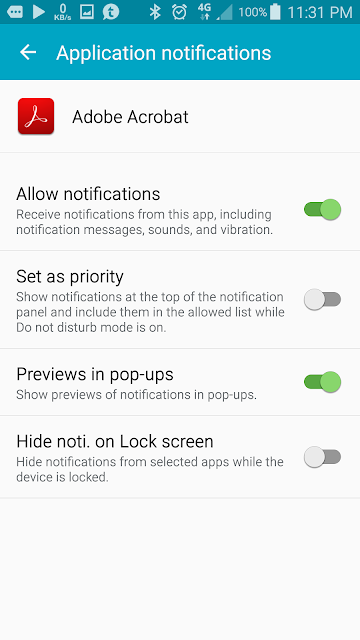
For every app in Samsung Galaxy Note 4, you can change the notifications behaviour to suits your need. For example, you can deny an app to post any notifications if the app is so annoying and there is no way to switch it off within the app settings itself. Or you can hide the notification on lock screen. This is how you can do it. Step 1 : Go to the "App info" screen. Step 2 : Go to "Notifications" and you will be presented with the notification settings screen for your pleasure.

How to find out how much storage space an app is taking up in your Samsung Galaxy Note 4

Image
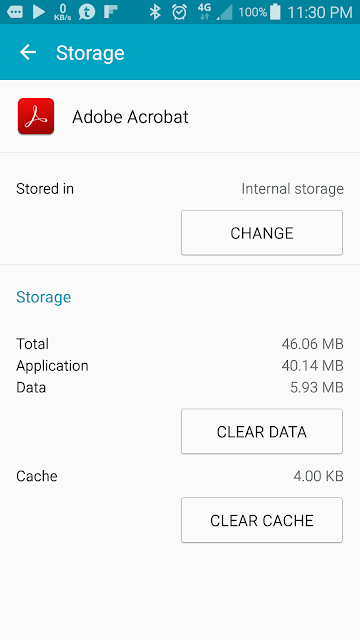
Do you know how to check and find out how much storage space an particular app is taking up from your phone memory? Or do you know that you can move an app install location from phone memory to your SD card memory? By doing that you can reclaim more storage space in your phone memory. You can even delete the app data or clear it's cache data as a means to reset the app if in case the app is not behaving normal. This is how you do it. Step 1 : Go to the "App info" screen. Step 2 : Go to "Storage" and you will be presented with the storage usage screen and you can do what you want with it.

How to change access permissions of an app for Samsung Galaxy Note 4

Image
Do you know that you can deny an app access permission? Permission such as accessing your contacts information and you know that that app has nothing to do with your contacts info. But then it's a useful app and you want to keep it. There are many permissions in the Android system and usually it will ask you if it's ok to have the permissions during installation from Google Play Store. You can change that after installation if you don't like it. Step 1 : Go to the "App info" screen. Step 2 : Go to the "Permissions" screen and you will be presented with the list of permissions that are granted to the app. You can turn off some of the permission to deny it access.

How to block background data of an app for Samsung Galaxy Note 4

Image
This is the easiest way to block or disable background data when using mobile data for any specific app. You can also look at the data usage graph for both mobile and wifi data. I know that I can also get to this screen by going through the Data Usage settings but if the app is consuming little data and if I insist of turning off the background data, then I need to scroll through the long list of apps. Step 1 : Go to the "App info" screen. Step 2 : Go to the "Data usage". You can find the checkbox to enable the block.

Prevent your Samsung Note4 screen from turning off while you are looking at it

Image
There is a cool feature in Samsung Galaxy Note 4 where the Note 4 will not switch off the screen if you are still looking at it. This is particularly useful when you are reading your Kindle or news from your news reader.

How to disable keyboard auto correct for Samsung Galaxy Note 4

Image
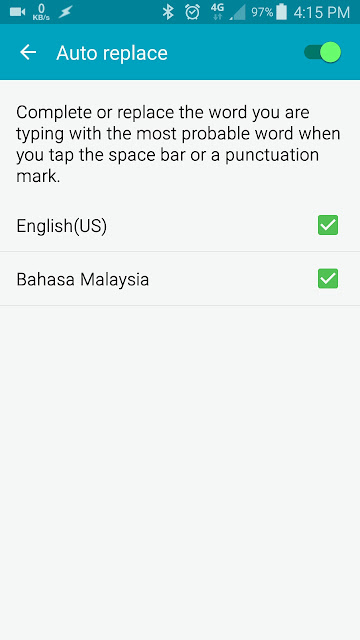
Having fear of those autocorrect horror stories you read in the internet while sending messages to your friends and family? Here's how you can disable the autocorrect function for Samsung Galaxy Note 4. Video Screenshots Step 1 : Pull down the notification panel from the top and tap the settings icon. Step 2 : Go to "Language and Input". Step 3 : Go to "Samsung Keyboard". Step 4 : Go to "Auto replace". Step 5 : Disable the "Auto replace" setting.

Samsung Galaxy Note 4

Image
This is the table of contents for all blog posts related to my Samsung Galaxy Note 4 smartphone. Note: This table of contents relies on Javascript.If the table of contents below does not appear, it is most likely you have disabled your browser Javascript. Please enable it back to view it.

How to disable flipboard briefing in Samsung Galaxy Note 4

Image
I find Flipboard Briefing is useful to me but it does consume quite an amount of data volume in the background every month. If you need or want to disable it, here is what you need to do. I have documented the steps in video and screenshots. Video Screenshots Step 1 : Pinch zoom on the home screen. Step 2 : Tap the "Home screen settings". Step 3 : Uncheck the checkbox for Flipboard Briefing.

How to block a number with Samsung Galaxy Note 4

Image
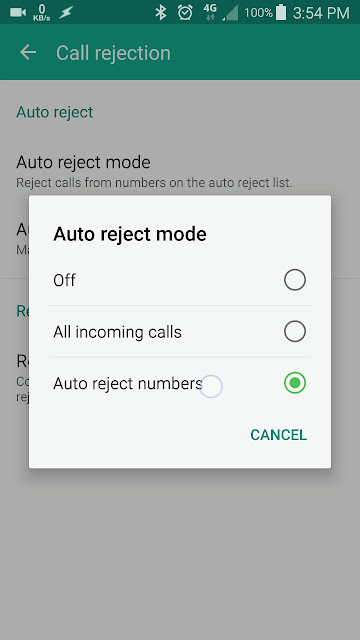
Samsung Galaxy Note 4 comes with a built-in number blocker to block those pesky cold calls from insurance agents, credit cards agents or all kinds of agents that are annoying. You don't have to install an extra app to do that, it's already comes with the phone. Below are the steps on how to get the number blocking setup. You can either watch the video or look at the step by step screenshots. Video Screenshots Step 1 : From the home screen, go to the dialer. Step 2 : Tap the menu icon (3 vertical dots at the upper right screen). Select "Settings". Step 3 : Select "Call". Step 4 : Select "Call rejection". Step 5 : Select "Auto reject mode". Step 6 : Select "Auto reject numbers". Step 7 : Select "Auto reject list". Step 8 : Add a number you want to reject or block.

How to add widgets in Samsung Galaxy Note 4

Image
Somehow I keep forgetting how to add widgets in my Samsung Galaxy Note 4. It's so easy but the function is hidden from plain sight compare to the vanilla Google Android provided in my old Samsung Galaxy Nexus. Maybe I did not fiddle with widgets so much nowadays. I am documenting this to remind myself of how to add app widgets to the home screen for Samsung Galaxy Note 4. Below I have documented the steps in video format and step by step screenshots format. Video Screenshots Step 1 : From the home screen do a pinch zoom and you shall enter the home screen customization mode. Step 2 : Tap the "Widgets" button. Step 3 : Tap and hold the widget that you want to place on the home screen. Step 4 : Immediately your screen will move to the home screen for you to place it wherever you want.

How to access app info in Samsung Galaxy Note 4

Image
The app info screen on the Samsung Galaxy Note 4 is a very useful for accessing individual app specific system settings of storage, data usage, permissions, notifications and etc. By using this screen, you can skip all the long winded steps to get the the specific app from the system settings screen that normally most people will do. Below are the simple steps to show you how to get to the app info screen. Below are the steps I have documented in the form of video and also step by step screenshots. Video Screenshots Step 1: From the home screen, tap the "Apps" button to go into the apps screen. Step 2: Tap and hold one of the app. Step 3: Once you have tap and hold the app, the screen will change to a mode where you can place the shortcut on the home screen. But don't let go just yet. Notice the App Info icon on the top? Move the floating app while you are holding it over the "App Info" icon. Then let go. Step 4: The "App Info" screen will appear and y...

How to reformat HTML and Javascript to be readable

Image
This is an online tool to make any compressed or minified HTML or Javascript to be readable format. There are times where the Javascript is compressed in order to minify the file to optimize website loading speed. If you are having trouble trying to make out what is the logic in the script, this tool can help you to reformat it to a readable form. Online Javascript Beautifier

Blogger Template editing resources

Image
A list of links to resources for reference when editing my Blogger template. Widget Tags for Layout Layout Data Tags master list

How to recalibrate your Samsung Note 4 battery

Image
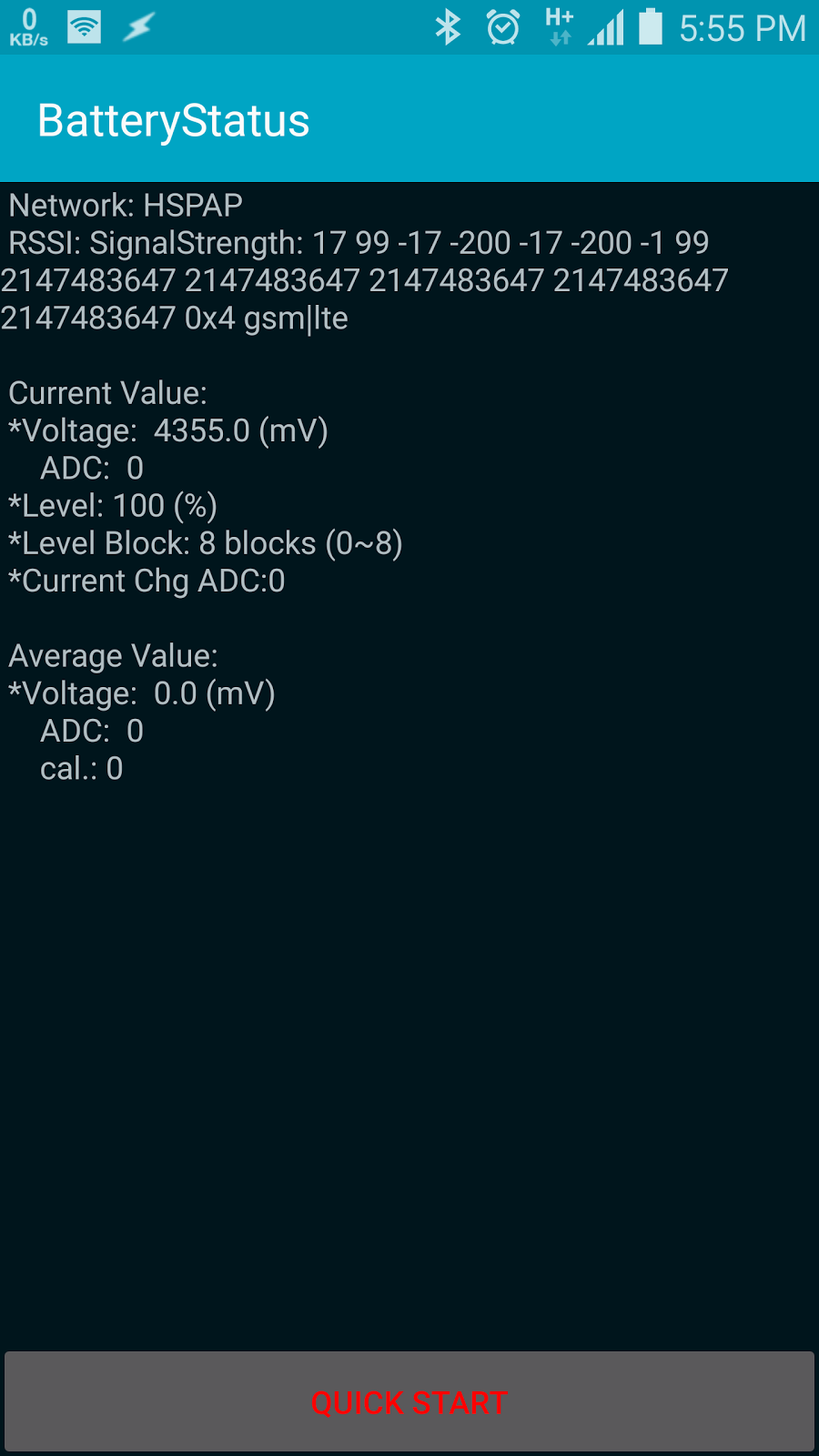
After more than year using the Samsung Galaxy Note 4, I have notice that the battery life seems to be deteriorating. The phone shut down at around 20% of battery level. I was thinking of buying a new battery but I remember I read somewhere on the internet that the battery can be recalibrated to restore the correct reading. That would be the first thing I should do before I decided to get a new battery. From my online research, there seems to be a built-in function in the phone that does the recalibration but there is no official documentation that stated it. I suspect it is possibly built for Samsung production factories to use it whenever they put in a new battery and it is not meant for public usage. After I ran the recalibration, the battery life seems to improve and the readings are more accurate as in there were no sudden drops of battery life level percentage which I experienced many times and cause the phone to shut down immediately at 20% level. Below are the steps on how to st...