Posts

How to run a command or application with a different CPU priority in Windows 7 using DOS command

Use the "start" command in command line to start a command or application with different CPU priority. start /[priority] [command or path to application] The priorities are: low normal high realtime abovenormal belownormal Example start /high [path-to-command/application]

How to run a command with a different CPU priority in Linux

Use nice to start a command with a different CPU priority in Linux. nice -n [num] [command with arguments] The nice number range from 19 to -20. 0 is the normal priority, 19 is the lowest priority and -20 is the highest priority. However, you will need admin rights to use -20. Eaxmples Run a command with the lowest priority. nice -n 19 [command with arguments]

How to find and delete files using command in Linux

How to use the command line in Linux to perform find/search and delete files. Find files with a search term (wildcard is *) and remove them. find . -name "search term" -exec rm -f {} \; Before running the command verify the results of the find command by running just find . -name "search term" Examples: Find all files having .txt (*.txt) extension in the current directory and remove them: find . -type f -name "*.txt" -exec rm -f {} \; Find all files having .txt (*.txt) extension in the current directory and remove them with confirmation: find . -type f -name "*.txt" -exec rm -i {} \; References, Sources and Credits: http://www.cyberciti.biz/faq/linux-unix-how-to-find-and-remove-files/

How to synchronize Outlook calendar with any Android smartphones

This is how you can synchronize your Microsoft Outlook calendar with your Android smartphone. Steps 1. Register an account at www.icalx.com . 2. Publish your Microsoft Outlook calendar to http://icalx.com/public/<username>/ or http://icalx.com/private/<username>/. For more details about the differences of the two links, please read the help section in www.icalx.com. 3. Install  iCalSync  on your Android smartphone. 4. Configure iCalSync to sync with your published Ms Outlook calendar on www.icalx.com website. Note: You can set the sync frequency of iCalSync in the app settings. For Ms Outlook update frequency to www.icalx.com, you can modify it in the "Send & Recieve" settings. Refer to the explanation at http://office.microsoft.com/en-001/outlook-help/publish-your-calendar-on-a-webdav-server-HA010147119.aspx References, Sources and Credits: http://technology.s-sheth.com/publish-outlook-calendar-to-gcal

Create individual tar.gz archive for every directory found in current location

This is how to automatically create individual tar.gz archive for every directory found in current location. Sometimes the whole directory might be too big to archive so I need to go one more level under and create a separate archives for each directory found. Method 1: find * -maxdepth 0 -type d -exec tar zcvf {}.tar.gz {} \; Method 2: for i in `ls ./`; do tar czvf "$i".tar.gz "$i" ; done References, Sources and Credits: http://www.commandlinefu.com/commands/view/2404/tar-per-directory

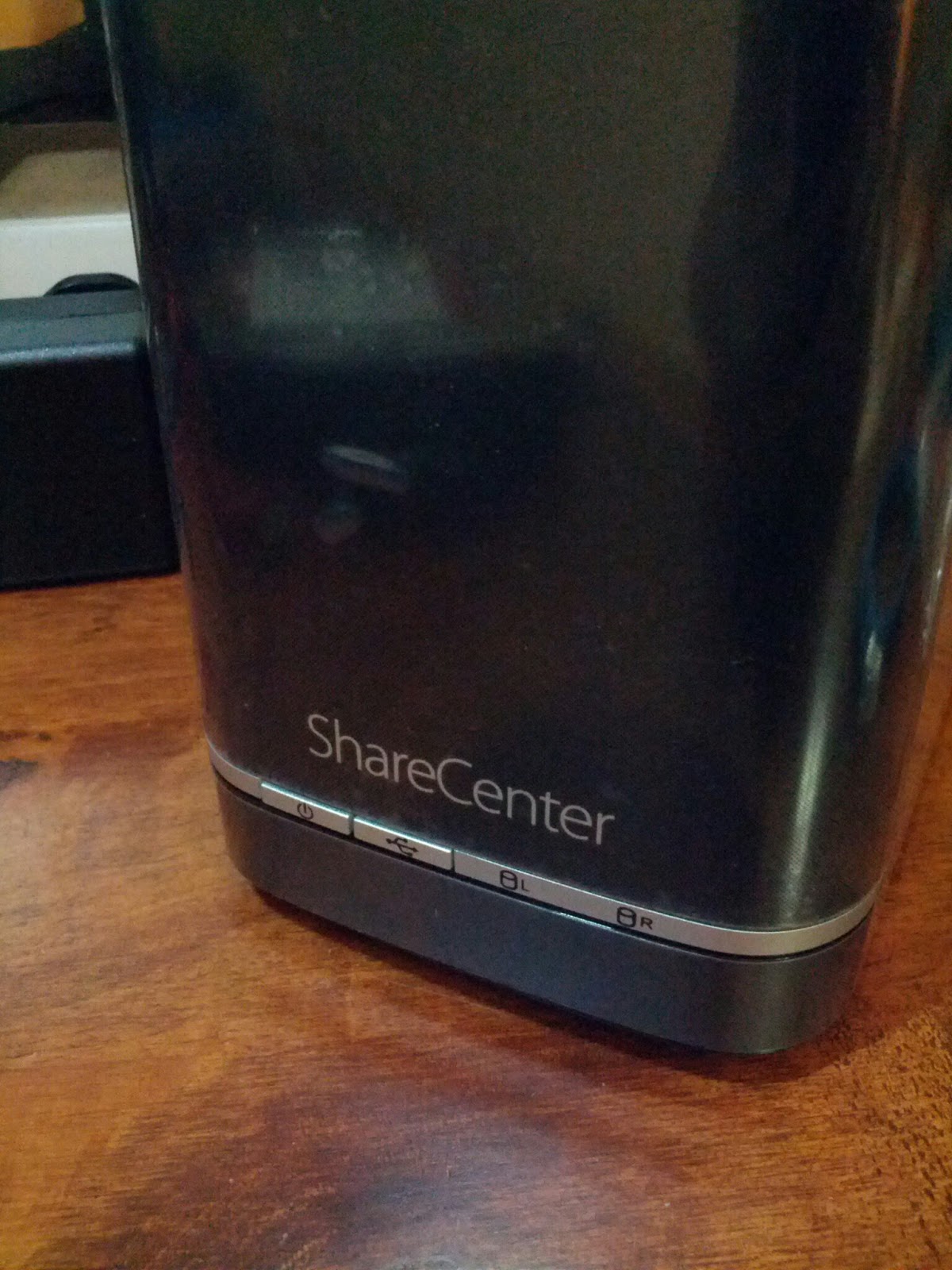
How to install fun_plug v0.7 on D-Link DNS-320L NAS server

Image
This is a summary of steps on how to install fun_plug v0.7 on D-Link DNS-320L NAS based on HDD-Installation of the fun_plug 0.7 on NAS-devices at http://nas-tweaks.net . For more detailed installation steps and explanations, please refer to  HDD-Installation of the fun_plug 0.7 on NAS-devices  post. Steps Step 1 : Download the installation files fun_plug script . fun_plug install archive . Step 2 : Place both files in the topmost directory of Volume_1 of your D-Link DNS-320L NAS Step 3 : Reboot your D-Link DNS-320L NAS Step 4 : Remote login into your D-Link DNS-320L NAS via telnet Step 5 : Change root password. Execute each command below one by one usermod -s /ffp/bin/sh root mkdir -p /ffp/home/root/ sed -ie 's#:/home/root:#:/ffp/home/root:#g' /etc/passwd pwconv passwd login wget http://wolf-u.li/u/172/ -O /ffp/sbin/store-passwd.sh store-passwd.sh Step 6 : Activate secure shell login (SSH) chmod a+x /ffp/start/sshd.sh sh /ffp/start/sshd.sh start Step ...

How to install Bittorrent Sync on D-Link DNS-320L NAS

Image
This is how to install Bittorrent Sync on your D-Link DNS-320L NAS server. Prerequisites Install fun_plug on your D-Link DNS-320L with ssh enabled . Steps Step 1 : Change directory into "/ffp/sbin". cd /ffp/sbin/ Step 2 : Download Bittorrent Sync for ARM from Bittorrent Sync website. wget http://btsync.s3-website-us-east-1.amazonaws.com/btsync_arm.tar.gz Step 3 : Extract the executable file from the downloaded tar.gz archive. tar zxvf btsync_arm.tar.gz Step 4 : By default the executable file does not have the execute permission enabled. Enable the execute permission. chmod a+x ./btsync  Step 5 : Change the ownership of the executable to root. chown root:root ./btsync Step 6 : Change directory into "/ffp/start/". cd /ffp/start/ Step 7 : create a btsync start script "btsync.sh". Copy and paste the codes below. #!/ffp/bin/sh # prOVIDE: inetd . /ffp/etc/ffp.subr name="btsync" command="/ffp/sbin/$name" ${command} Step 8 : Make the script exe...