Posts

How to change an app notifications behaviour in Samsung Galaxy Note 4
Image
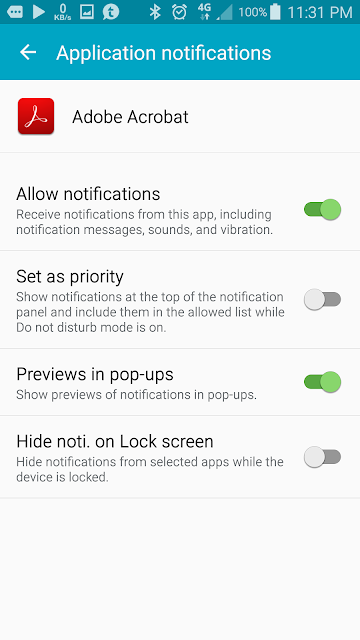
For every app in Samsung Galaxy Note 4, you can change the notifications behaviour to suits your need. For example, you can deny an app to post any notifications if the app is so annoying and there is no way to switch it off within the app settings itself. Or you can hide the notification on lock screen. This is how you can do it. Step 1 : Go to the "App info" screen. Step 2 : Go to "Notifications" and you will be presented with the notification settings screen for your pleasure.
How to find out how much storage space an app is taking up in your Samsung Galaxy Note 4

Image
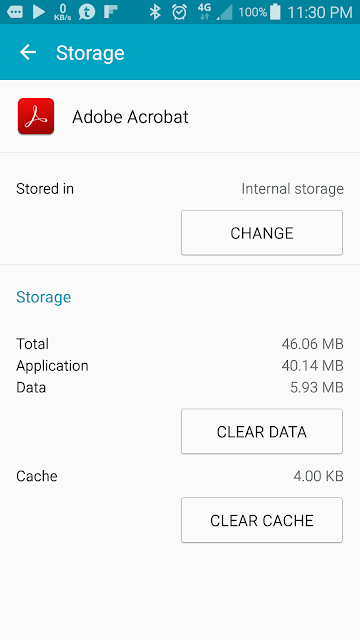
Do you know how to check and find out how much storage space an particular app is taking up from your phone memory? Or do you know that you can move an app install location from phone memory to your SD card memory? By doing that you can reclaim more storage space in your phone memory. You can even delete the app data or clear it's cache data as a means to reset the app if in case the app is not behaving normal. This is how you do it. Step 1 : Go to the "App info" screen. Step 2 : Go to "Storage" and you will be presented with the storage usage screen and you can do what you want with it.

How to change access permissions of an app for Samsung Galaxy Note 4

Image
Do you know that you can deny an app access permission? Permission such as accessing your contacts information and you know that that app has nothing to do with your contacts info. But then it's a useful app and you want to keep it. There are many permissions in the Android system and usually it will ask you if it's ok to have the permissions during installation from Google Play Store. You can change that after installation if you don't like it. Step 1 : Go to the "App info" screen. Step 2 : Go to the "Permissions" screen and you will be presented with the list of permissions that are granted to the app. You can turn off some of the permission to deny it access.

How to block background data of an app for Samsung Galaxy Note 4

Image
This is the easiest way to block or disable background data when using mobile data for any specific app. You can also look at the data usage graph for both mobile and wifi data. I know that I can also get to this screen by going through the Data Usage settings but if the app is consuming little data and if I insist of turning off the background data, then I need to scroll through the long list of apps. Step 1 : Go to the "App info" screen. Step 2 : Go to the "Data usage". You can find the checkbox to enable the block.

Prevent your Samsung Note4 screen from turning off while you are looking at it

Image
There is a cool feature in Samsung Galaxy Note 4 where the Note 4 will not switch off the screen if you are still looking at it. This is particularly useful when you are reading your Kindle or news from your news reader.

How to disable keyboard auto correct for Samsung Galaxy Note 4

Image
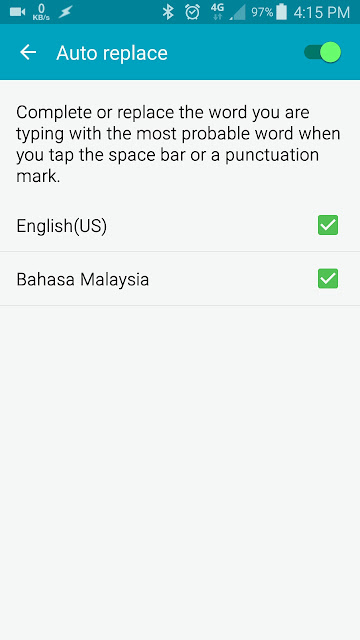
Having fear of those autocorrect horror stories you read in the internet while sending messages to your friends and family? Here's how you can disable the autocorrect function for Samsung Galaxy Note 4. Video Screenshots Step 1 : Pull down the notification panel from the top and tap the settings icon. Step 2 : Go to "Language and Input". Step 3 : Go to "Samsung Keyboard". Step 4 : Go to "Auto replace". Step 5 : Disable the "Auto replace" setting.

Samsung Galaxy Note 4

Image
This is the table of contents for all blog posts related to my Samsung Galaxy Note 4 smartphone. Note: This table of contents relies on Javascript.If the table of contents below does not appear, it is most likely you have disabled your browser Javascript. Please enable it back to view it.